
The project at a glance
ClassicOutlook-Toolkit is an open-source toolbox that installs directly inside Outlook Classic, with no additional software. It adds a set of ribbon commands that automate what is usually done by hand: filing an email in the right folder, spotting overdue replies, preparing personalised mailings in bulk, keeping contacts up to date, linking meetings to projects and measuring your email workload.
Designed for people who receive hundreds of emails a month while managing dozens of projects, clients or partners, it reduces repetitive tasks and makes conversations easier to manage. It runs in VBA, the macro language built into Office.
In numbers: around sixty modules, about 47,000 lines of code and more than 60 commands available from the ribbon.
Getting started: Outlook Classic for Windows, 64-bit Office and permission to run macros. Several features require Excel. Allow about an hour for the initial setup using the guide. The interface is available in French and English. Not compatible with New Outlook, Outlook on the web or Outlook for Mac.
Why I built it
In my technology transfer work, I follow several dozen projects at the same time, each with its own research labs, partner companies, contracts and meetings. Everything goes through the mailbox, and every email calls for the same small tasks: finding the right folder, filing the reply, checking whether a partner has responded, preparing a follow-up, linking a meeting to a project. Taken one by one, these tasks are quick; repeated throughout the week, they end up taking a significant share of the day.
I built this toolkit in my spare time, over six months, with the help of AI and without being a professional developer. The constraint was to work within the Outlook environment already available on my computer, without administrator rights or additional software. Outlook’s built-in VBA made it possible to build, module by module, something tailored to the way I work.
All processing runs locally on your computer, with no connected third-party service: it is a rule-based expert system that does not need the Internet to work. Your emails, contacts and calendar stay inside Outlook, so confidentiality is not an issue. The only exception is the command that sends a text to an AI assistant; it is optional and triggered by hand.
1. File emails automatically
Filing matches project or contract references in messages to indexed folders. This avoids maintaining a separate filing rule for every project, while letting you search for a destination or create a missing folder.
| Feature | Benefit |
|---|---|
| Automatic filing | Finds references in the subject, attachment names or body. Moves the email directly when the identified reference matches a single folder; otherwise opens an assisted search. References found in the body may require confirmation. |
| Folders across mailboxes | Indexes folders in accessible mailboxes. Creates a missing folder using the configured project reference list. |
| Reply filing | Saves a reply to an already-filed email in the original folder, including in an accessible shared mailbox. |
| Quick folder access | Opens a folder by keyword without browsing the folder tree. |
| Folder management | Archives inactive folders, merges duplicates, sorts folders, renames them in bulk after review and exports emails to PDF. |

2. Track replies and prepare follow-ups
Find conversations still waiting for a response without having to remember them all or search through sent emails.
| Feature | Benefit |
|---|---|
| Tracking dashboard | Excel dashboard showing tracked messages, detected replies, elapsed time and highlighted overdue items, with follow-up commands. |
| Tracking suggestions | After sending, configurable words and phrases identify messages that may need a reply and prompt you to track them. |
| Snooze | Brings a postponed email back to your inbox on the chosen date. |
3. Personalise your email campaigns
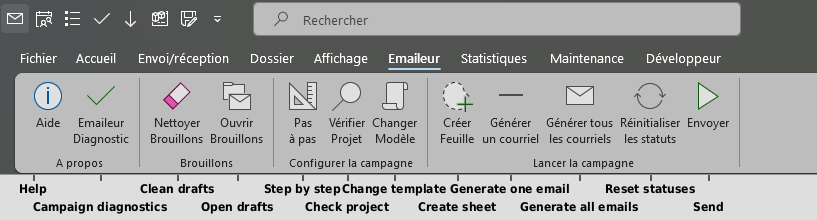
Mail merge from Excel, with each row defining its own message: French or English text, different documents and different people copied within the same campaign.
| Feature | Benefit |
|---|---|
| Per-message customisation | Separate recipients, Cc, Bcc, subject, body, attachments and Outlook template for each row. You prepare the text in the language you need. |
| Review before sending | Opens a single row’s email for review or generates drafts in bulk. The template preserves the layout and signature. |
| Paced sending | Sends batches in the background, tracks each row’s status and lets you stop at any time. Outlook remains usable during the campaign. |
4. Manage contacts and relationships
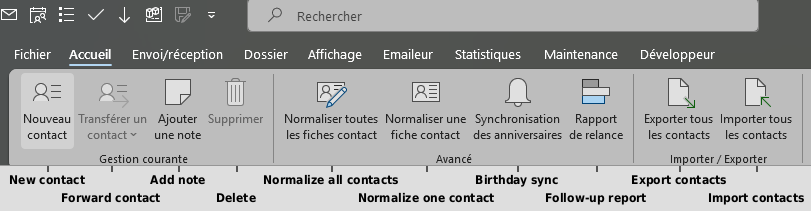
Lightweight CRM features for personal contact and conversation tracking in Outlook: up-to-date details, dated notes and people to reconnect with.
| Feature | Benefit |
|---|---|
| Contact from a signature | Creates a pre-filled record with name, job title, organisation, phone numbers and address, ready to review and complete. |
| Contact notes | Adds a dated note to a contact record in one click. |
| Contacts to reconnect with | Uses sent messages to report on people you have not emailed for a while. |
| Contact cleanup | Standardises names, phone numbers and addresses, and handles duplicates. |
| Birthdays | Synchronises a birthday and name-day calendar with contact records, including reminders. |
| Import and export | Backs up and reimports contacts in CSV format, with support for photos. |
5. Organise your calendar and track your time
Link meetings to projects and see their distribution in an Excel time-tracking workbook. Colours make the week easier to read.
| Feature | Benefit |
|---|---|
| Project tagging | Prompts for a project when creating an appointment; adds its code and name to the title for time tracking. |
| Automatic colours | Colour-codes meetings as internal, external or commercial. |
| Overlap management | Automatically shifts certain short appointments when they overlap. |
| Meeting conversion | Converts a meeting with no attendee other than yourself to an ordinary appointment and removes the Teams block. |
| Calendar shortcuts | Quick appointments, a default duration of 15 minutes and shifts forwards or backwards by 15 minutes. |
| Window organisation | Keeps separate email and calendar windows, especially useful with two monitors. |
| Appointment privacy | Automatically marks appointments from certain organisers, defined in the configuration, as private. |
6. Understand your activity through statistics
A standalone Excel module analyses your mailboxes and brings together statistics on your activity: volumes, communication patterns and response times.
| Feature | Benefit |
|---|---|
| Message volumes | Sent and received emails, internal and external exchanges, and To versus Cc distribution. |
| Patterns and trends | Activity by day and hour, plus monthly and yearly trends. |
| Contacts and replies | Top contacts and response times. |
| Incremental updates | Updates the report without routinely rescanning the entire history. |
7. Customise your workspace
| Feature | Benefit |
|---|---|
| Personalised greetings | Adds a greeting to replies to one person, using their first name from the directory when available. Avoids repetition if you have already emailed them that day. |
| Per-mailbox alerts | Customisable sounds and colours identify the relevant mailbox at a glance. Groups notifications for closely spaced arrivals and stays silent when Outlook is in the foreground. |
| Quick searches | One-button access to emails received or sent this week. |
| Mark all as read | Counts unread messages and asks for confirmation before processing the default mailbox and its subfolders. The previous read/unread state is not preserved. |
| Banners and prefixes | Displays confidentiality or urgency labels in the message and subject, with Outlook sensitivity settings. |
| Proofreading with an AI assistant | Passes the text of an email open for composition to Claude, Mistral or ChatGPT in the browser to request proofreading or rewriting. |
| Mailbox maintenance | Periodic cleanup of technical flags and category management. |

8. Settings, backups and diagnostics
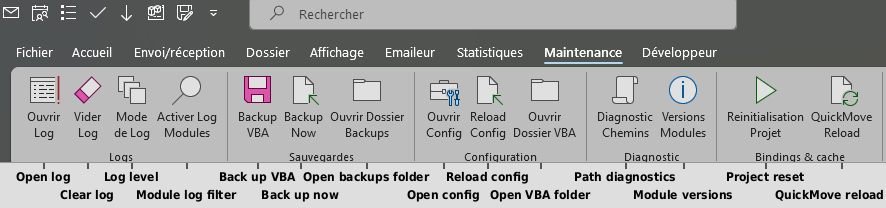
The main settings are centralised, with maintenance tools gathered in one menu.
| Feature | Benefit |
|---|---|
| Central configuration | A config.ini file for language, workbook paths, project codes, colours, trigger words and options. |
| Automatic backups | Monthly timestamped backups of the VBA project and its settings. |
| Diagnostics | A shared log to investigate unexpected behaviour, with access to diagnostics and version information. |
9. Set up and try the toolkit
The guide walks you through adding the modules to Outlook’s VBA editor, compiling the project and configuring the ribbon. If no configuration file exists on first launch, a setup assistant checks the environment and offers to create a minimal file. The guide also lists the workbooks to configure for the features that use Excel.
10. Use and contribute to the project
The GitHub repository contains the source code, workbook templates, ribbon customisations and documentation. The project is released under the GNU GPL v3 licence; the full conditions are available in the repository. Feedback, issue reports and improvements are welcome.
11. The toolkit in action
Three short clips recorded on fictional data: a contact card built from an email signature, the calendar import feeding the time-tracking workbook, then the email statistics report.
12. Compared with commercial add-ins
To put the toolkit in context, here are the main publishers of add-ins for classic Outlook, compared on twelve feature families and on price. The twelve families are the toolkit’s own, so it covers all of them by construction. The point of the table is elsewhere: to see which commercial product answers each need, at what price, and what those publishers do better.
Feature coverage
| Product | Auto-filing | Folder tools | Reply tracking | Mail merge | Contacts | Calendar | Time tracking | Analytics | Alerts | Send safety | AI assistant | Configuration | Entry price |
|---|---|---|---|---|---|---|---|---|---|---|---|---|---|
| ClassicOutlook-Toolkit | ● | ● | ● | ● | ● | ● | ● | ● | ● | ● | ● | ● | Free |
| ExtendOffice (Kutools) | ◐ | ◐ | ● | ◐ | ◐ | ○ | ○ | ◐ | ◐ | ◐ | ● | ◐ | $59 |
| Standss | ● | ◐ | ◐ | ● | ○ | ○ | ○ | ○ | ○ | ● | ○ | ◐ | from $50 |
| Sperry Software | ◐ | ◐ | ○ | ● | ◐ | ○ | ○ | ○ | ○ | ● | ○ | ○ | from $30 |
| MAPILab | ○ | ◐ | ● | ● | ◐ | ○ | ○ | ○ | ◐ | ◐ | ○ | ◐ | from $19 |
| Relief Software (ReliefJet) | ◐ | ● | ◐ | ● | ◐ | ◐ | ◐ | ◐ | ○ | ◐ | ○ | ◐ | from $20 |
| VBOffice | ◐ | ○ | ○ | ○ | ○ | ◐ | ● | ◐ | ○ | ◐ | ○ | ◐ | from $23 |
| AssistMyTeam | ○ | ◐ | ◐ | ○ | ○ | ◐ | ● | ◐ | ○ | ○ | ○ | ◐ | from $20 |
| 4Team Corporation | ○ | ◐ | ◐ | ○ | ◐ | ○ | ○ | ○ | ○ | ○ | ○ | ○ | from $30 |
| Ablebits | ○ | ○ | ○ | ● | ○ | ○ | ○ | ○ | ○ | ○ | ○ | ◐ | $36/year |
● dedicated feature ◐ partial or adjacent ○ none. Hover a cell to read which product is meant, or a price for the licence details; on a small screen, the table scrolls sideways.
What the publishers do better
- Installation in a few clicks: an installer, MSI packages, group-policy or Microsoft 365 admin center deployment, where the toolkit asks you to paste code into the VBA editor.
- Commercial support, free trials of two weeks to two months, money-back guarantees, and one to two years of updates included.
- Versions for new Outlook, Outlook on the web and Mac at Standss, Sperry Software, Ablebits and, for the AI part, ExtendOffice. The toolkit stays tied to classic Outlook on Windows.
- Advanced send-time compliance (SendGuard, Safeguard Send) and mail merge with open tracking (EmailMerge365).
What the toolkit does better
- Everything in one place, driven by project codes: filing across 1,000+ folders, replies filed with the original, calendar, time tracking and analytics share the same reference data.
- No third-party service: everything runs on the computer, nothing is sent out.
- Free and modifiable: the code is open, anyone can adapt it to their own codes and folders.
Survey made on 16 September 2026 from the vendors’ websites. Product names belong to their publishers. Spotted an error or a change? Write to me and I will correct it.